



Ecomm How To Guide
Here is a How To guide for payments made through Ecomm.
This website is for all payments/suppliers that cannot be made on customers direct cards. This payment will send the customer funds to Archer Travel UK’s bank account where it will then be sent to the relevant supplier (we will do this).
All UK agents will begin receiving a login for Ecomm pay over the following week via email.
Please ensure you read this guide carefully as some of the fields are necessary to have absolutely correct in order for the funds to be sent out correctly.
For anyone who has any questions, please email Sharna@ArcherTravel.com
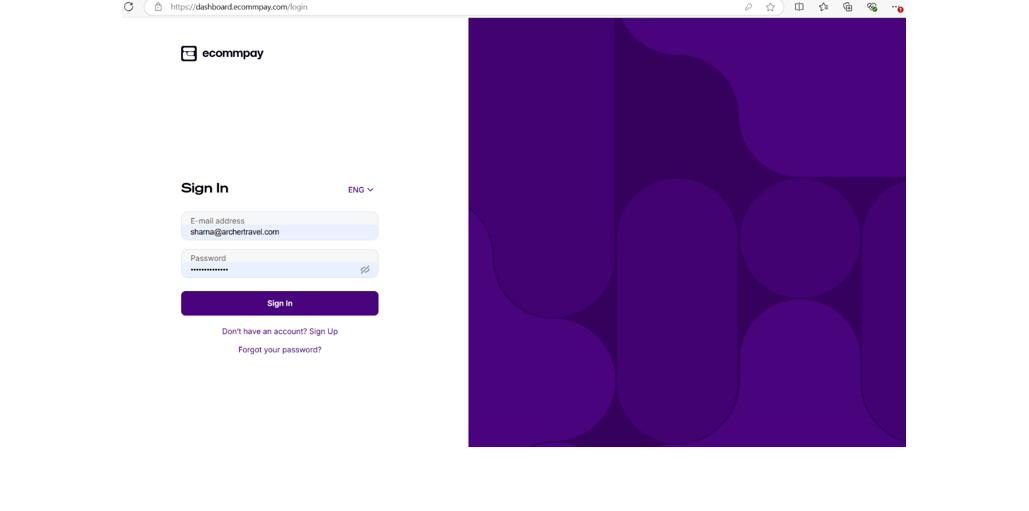
Step 1. Login to your Ecomm pay dashboard
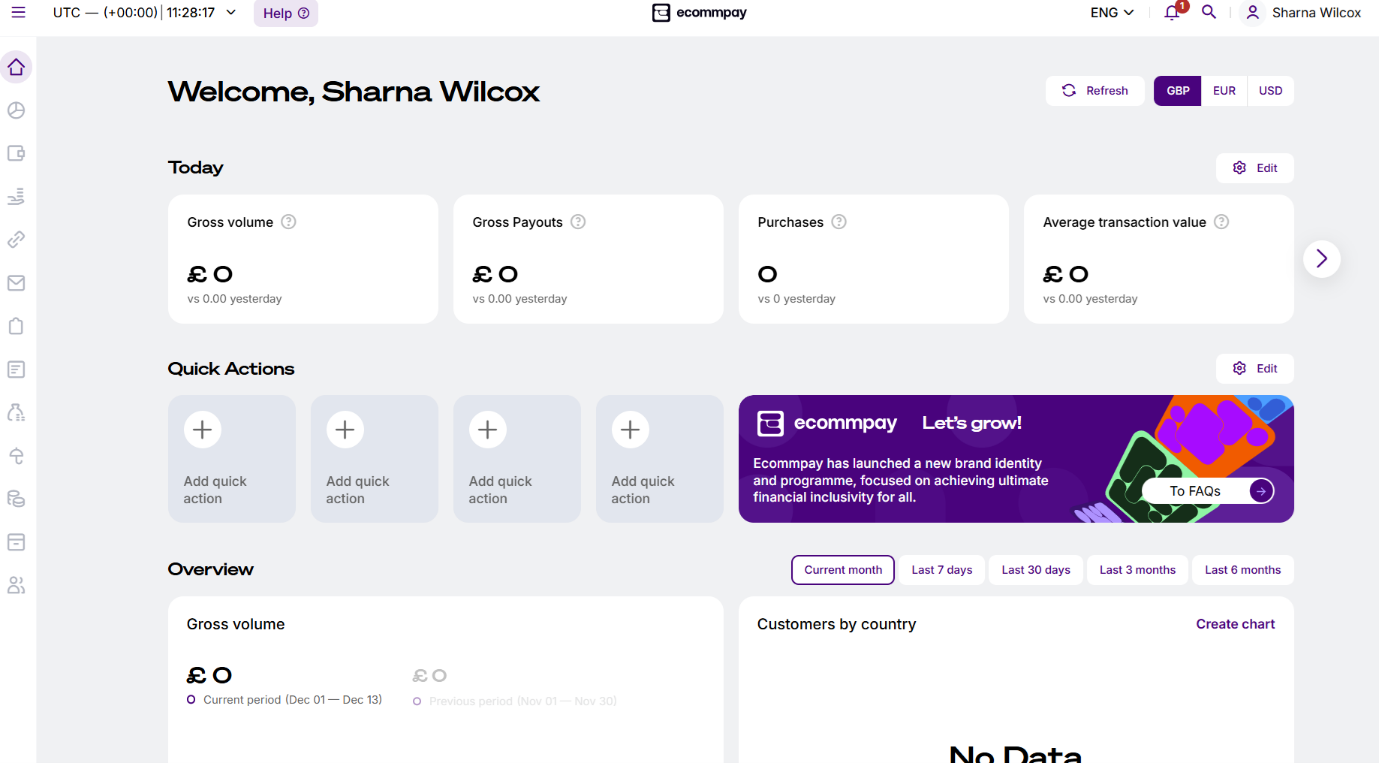
Step 2. You will be directed to your homepage – as payments are put through the system you will see your
‘gross volume’ increase
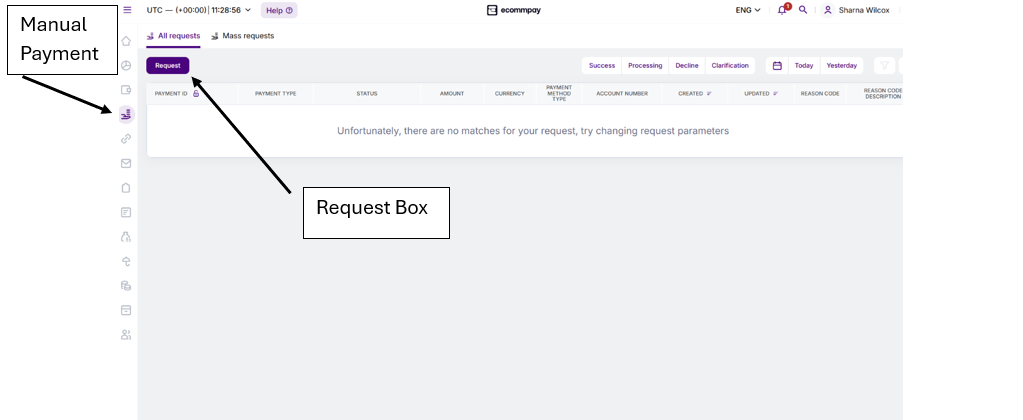
Step 3. To make a payment – from the menu down the left hand side – select ‘Manual Payment’ – your screen will then look like this (again, this will look different as you begin making payments) then select ‘request’
Step 4. Taking payment – Below has now been verified by Ecomm pay – This is what you will be most likely to use as this payment method HAS to be used for any client not present (No clients will be present as they will all be over the phone/email). Select virtual terminal and ensure you select ‘archertraveluk.moto (139133)’ from the ‘Project’ dropdown box.
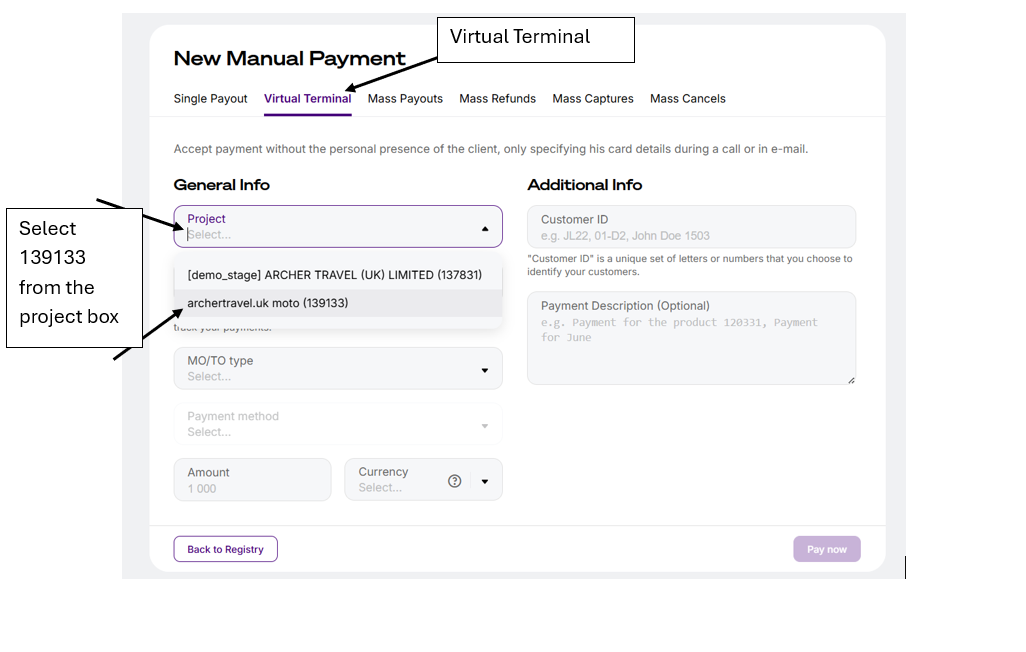
*Please ensure that you have read and understood all of the information as failure to input the correct details as listed below could result in your payment not being sent to the correct supplier.
Step 5. Inputting details
- Payment ID – Enter the supplier name, and whether the payment is a deposit, full balance or a partial payment (e.g. Expedia – Deposit)
- MO/TO type – Telephone order
- Payment method – Card payments
- Amount – however much you are taking from the client
- Currency – GBP
- Customer ID – Enter the customers FULL NAME and DATE OF DEPT (e.g. MR JOHN SMITH 15.03.2025)
- Payment description – optional field
- Select ‘Pay now’
Step 5. After selecting ‘Pay now’ enter the relevant details from your clients card and select ‘Pay’
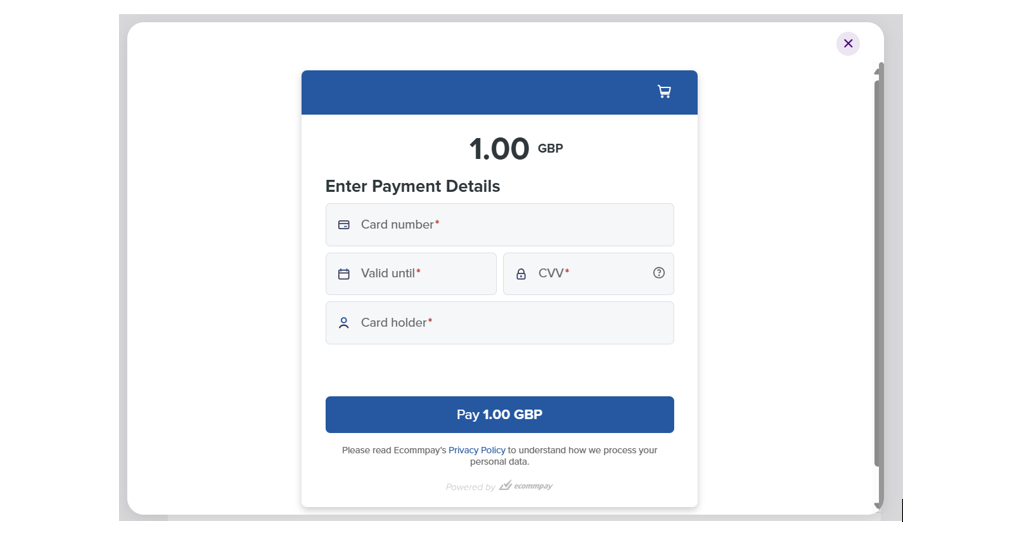
Your payment will now show as complete
Payment Link Option
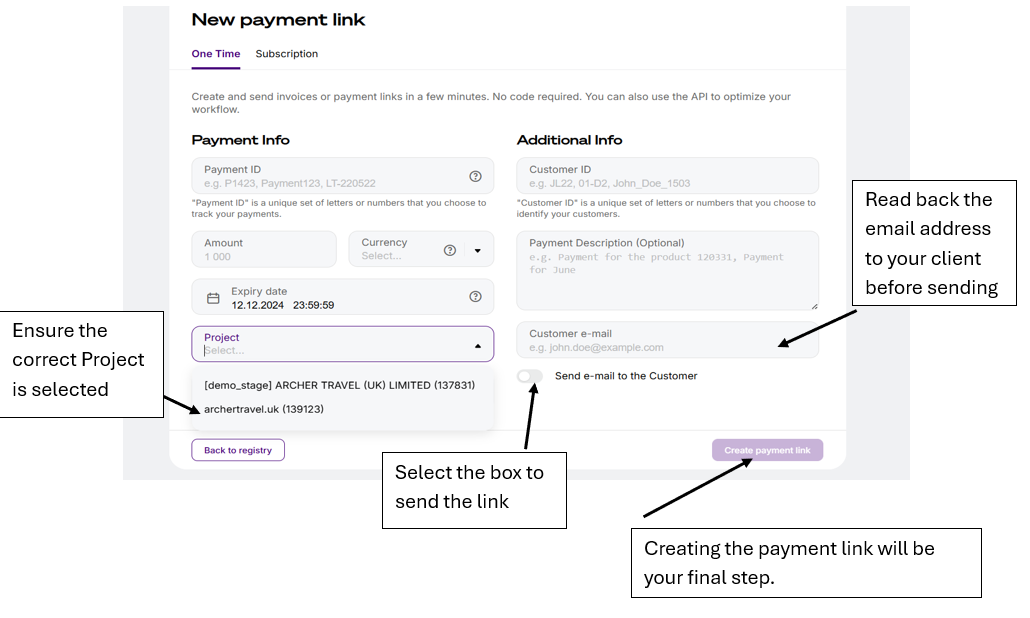
Step 1. From the menu down the left, select the ‘Payment Links’ tab followed by the ‘New payment Link’ box
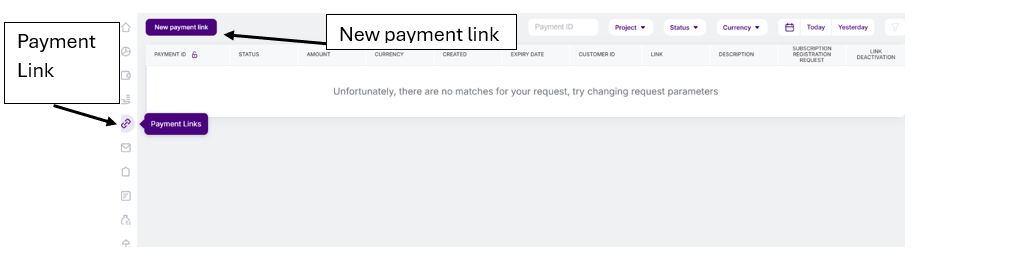
Step 2. Follow the same requirements as earlier. Ensure that the project selected is ‘archertravel.uk (139123)’
Your only difference here will be to ensure that you enter the customers email address in the box provided and select the ‘Send email to the customer’ followed by ‘Create payment link’
This will then send the link to your client where they can follow and enter their card details and pay.
Should anyone require a refund to be sent to a client, you will need to contact myself – Sharna@Archertravel.com 01253 759693 where I will be able to authorize a refund to be processed.
Please note – for those of you have clients from outside of the UK – payments CAN still be made